The Miyoo Mini Plus is a handheld retro gaming device gaining popularity, and Onion OS significantly enhances its functionality. This guide details installing and configuring Onion OS V4.2 for an optimal gaming experience.
Many users seek a streamlined setup, and readily available tutorials on platforms like YouTube and Reddit demonstrate the ease of installation using desktop tools.
What is the Miyoo Mini Plus?
The Miyoo Mini Plus is a remarkably compact handheld retro gaming console, designed for enthusiasts seeking portable access to classic games. It’s significantly smaller than many competitors, making it incredibly pocketable and convenient for on-the-go gaming sessions.
Unlike some devices that ship with limited or customized operating systems, the Miyoo Mini Plus thrives with community-developed firmware like Onion OS. While functional out of the box, its true potential is unlocked through alternative software. The device supports a wide array of retro game formats, allowing users to enjoy titles from various classic consoles.
Its affordability and ease of customization have contributed to its growing popularity within the retro gaming community, with numerous online resources dedicated to optimizing its performance and expanding its capabilities.
Why Choose Onion OS?
Onion OS offers a vastly improved user experience compared to the stock firmware on the Miyoo Mini Plus. It provides a cleaner, more intuitive interface specifically designed for retro gaming, streamlining navigation and game management. Users benefit from enhanced compatibility with a broader range of emulators and ROM formats.
The community-driven development of Onion OS ensures frequent updates, bug fixes, and new features. Installation is simplified through readily available desktop tools, making the process accessible even for beginners. Furthermore, Onion OS facilitates easier customization, allowing users to personalize themes and performance settings.
Ultimately, Onion OS unlocks the full potential of the Miyoo Mini Plus, transforming it into a powerful and versatile retro gaming machine.
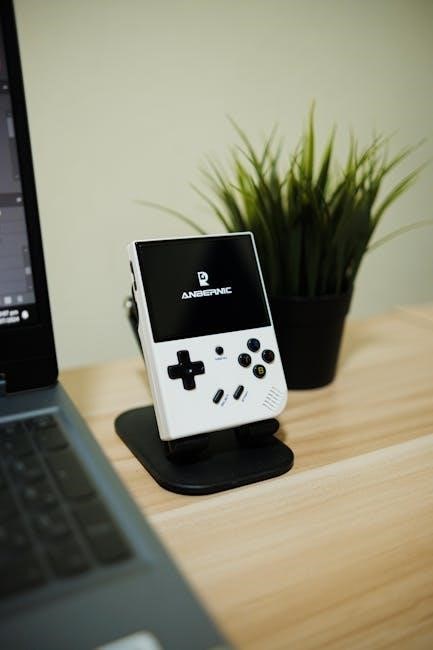
Preparing for Onion OS Installation
Before installing Onion OS, you’ll need a microSD card and a computer. Download the Onion OS V4;2 image and the necessary desktop installation tool for a smooth process.
Required Materials: SD Card & Computer
Successfully installing Onion OS on your Miyoo Mini Plus hinges on having the correct materials readily available. First, a microSD card is absolutely essential; a capacity of 64GB or 128GB is highly recommended to comfortably accommodate both the operating system and a substantial library of ROMs. Ensure the SD card is of a reputable brand for optimal performance and reliability.
Secondly, you’ll require a computer – either a Windows, macOS, or Linux machine will suffice – with a functioning SD card reader. This reader can be built-in or external, connected via USB. A stable internet connection is also crucial for downloading the Onion OS image and the accompanying desktop installation tool. Having these components prepared beforehand will streamline the installation process considerably.
Downloading Onion OS V4.2
Acquiring the Onion OS V4.2 image is the first step towards transforming your Miyoo Mini Plus. The official Onion OS website is the safest and most reliable source for downloading the firmware. Be cautious of third-party sites, as they may host outdated or compromised versions. Navigate to the downloads section and locate the V4.2 image specifically designed for the Miyoo Mini Plus.
The file will typically be a compressed archive (like a .zip or .7z file). Once downloaded, extract the contents to a convenient location on your computer. This extracted folder will contain the necessary files for the installation process. Double-check that the download completed successfully and isn’t corrupted before proceeding.
Downloading Necessary Tools (Desktop Tool)
The Onion OS Desktop Tool simplifies the installation process significantly, especially for beginners. This user-friendly application automates the SD card formatting and firmware flashing, reducing the risk of errors. You can find the Desktop Tool on the official Onion OS website, usually located in the same downloads section as the OS image itself.
Download the version compatible with your computer’s operating system (Windows, macOS, or Linux). Once downloaded, install the tool following the on-screen instructions. The Desktop Tool provides a graphical interface, making the entire process more intuitive than manual methods. It’s a highly recommended tool for a smooth and hassle-free installation experience.
Installing Onion OS ⎯ Step-by-Step
Installing Onion OS involves formatting your SD card, utilizing the Desktop Tool to flash the firmware, and then copying the necessary Onion OS files onto the prepared SD card.
Formatting the SD Card
Formatting the SD card is a crucial first step for a successful Onion OS installation. The recommended method utilizes the Desktop Tool, simplifying the process considerably. Before proceeding, ensure you’ve backed up any important data on the SD card, as formatting will erase everything.
Within the Desktop Tool, select the formatting option, typically choosing FAT32 as the file system. This ensures compatibility with the Miyoo Mini Plus. The tool will handle the entire formatting procedure, preparing the SD card to receive the Onion OS files.
Alternatively, you can use standard disk management utilities on your computer, but the Desktop Tool offers a more streamlined and reliable experience specifically tailored for the Miyoo Mini Plus.
Using the Desktop Tool for Installation
The Desktop Tool is the easiest method for installing Onion OS on your Miyoo Mini Plus. After downloading and launching the tool, connect your formatted SD card to your computer via a card reader. The tool will automatically detect the card, presenting you with installation options.
Select the appropriate Onion OS version (V4.2 is current) and follow the on-screen prompts. The tool handles partitioning and file transfer automatically, eliminating manual steps. This process typically takes only a few minutes, making it incredibly efficient.
Ensure a stable connection during installation to prevent errors. Once completed, safely eject the SD card, and you’re ready to boot your Miyoo Mini Plus with Onion OS.
Copying Onion OS Files to the SD Card
After formatting the SD card, you’ll need to transfer the Onion OS files. Unzip the downloaded Onion OS V4.2 archive to your computer. Locate all the extracted files and folders within the unzipped directory. Carefully copy all of these files and folders directly to the root directory of your SD card – do not create any additional folders.
Ensure that all files are successfully copied before ejecting the SD card. Double-check to avoid missing any crucial components. A complete transfer is essential for a successful boot. Once verified, safely remove the SD card from your computer and insert it into your Miyoo Mini Plus, preparing for the first boot.
First Boot and Initial Setup
Upon inserting the SD card, the Miyoo Mini Plus should automatically boot into Onion OS. Navigate the user-friendly interface, then connect to Wi-Fi for updates and customization.
Navigating the Onion OS Interface
The Onion OS interface is designed for intuitive use, prioritizing ease of access to your game library. Upon booting, you’ll be greeted with a visually appealing home screen featuring prominent icons. The main menu provides access to essential functions like ‘Games’, ‘EmulationStation’, ‘Settings’, and ‘Scraping’.
Within ‘Games’, you’ll find your installed ROMs organized by system. ‘EmulationStation’ allows for detailed configuration of emulators. The ‘Settings’ menu offers extensive customization options, including display, audio, and network settings. Utilizing the touchscreen and physical buttons allows for seamless navigation. Familiarize yourself with the layout to quickly launch games and adjust settings to your preference. The interface is responsive and designed for a smooth user experience.
Setting Up Wi-Fi Connection
Connecting to Wi-Fi is crucial for online features like scraping metadata for your games and downloading updates. From the Onion OS home screen, navigate to ‘Settings’ and select ‘Wi-Fi’. The system will scan for available networks. Choose your desired network from the list and enter the password when prompted.
Ensure you input the correct credentials for a successful connection. Once connected, a Wi-Fi icon will appear in the status bar. A stable connection is essential for optimal performance when downloading box art and game information. Troubleshooting connection issues may involve restarting the device or verifying your router settings.
Configuring Display Settings
Adjusting display settings on your Miyoo Mini Plus with Onion OS allows for a personalized visual experience. Access ‘Settings’ from the home screen, then select ‘Display’. Here, you can modify brightness, contrast, and screen rotation. Experiment with these settings to find what best suits your preferences and viewing conditions.
Onion OS also offers options for scaling and aspect ratio, impacting how games are presented. Fine-tuning these settings can optimize the visual quality of different emulators. Consider adjusting these based on the specific game you are playing for the best results. Remember to save your changes before exiting the display settings menu.
Adding ROMs to Your Miyoo Mini Plus
Adding ROMs is simple: create dedicated folders for each system within the ROMs directory on your SD card, then transfer your game files.
Creating ROM Folders
Organizing your ROMs is crucial for a clean and functional setup on your Miyoo Mini Plus with Onion OS. Within the main ROMs directory on your SD card, you’ll need to establish dedicated folders for each gaming system you intend to emulate.
For example, create folders named “Nintendo 64”, “Game Boy Advance”, “Super Nintendo”, or “PlayStation”. Consistent and accurate naming conventions are highly recommended for optimal compatibility and display within the EmulationStation interface. This ensures the system recognizes and categorizes your games correctly.
Avoid spaces or special characters in folder names to prevent potential issues. A well-structured folder system will significantly improve your overall gaming experience, making it easier to locate and launch your favorite retro titles.
Transferring ROMs to the SD Card
Once your ROM folders are created, transferring your game files to the SD card is straightforward. Connect the SD card to your computer using a card reader. Then, simply copy your ROM files into their corresponding system folders. Ensure the ROM files are compatible with the emulators supported by Onion OS – common formats are .zip, .smc, .gba, and .iso.
After the transfer is complete, safely eject the SD card from your computer. Reinsert it into your Miyoo Mini Plus. The device will scan the ROMs directory upon booting, populating the EmulationStation interface with your games.
Remember to verify the ROMs are functioning correctly after the initial scan.
Supported ROM Formats
Onion OS on the Miyoo Mini Plus boasts broad compatibility with numerous retro gaming ROM formats. Commonly supported formats include those for classic consoles like Game Boy Advance (.gba), Super Nintendo (.smc, .sfc), and Sega Genesis (.bin, .gen). PlayStation Portable (.iso, .cso) and PlayStation 1 (.iso, .bin, .cue) games also function well.
Arcade ROMs in .zip format are generally supported, alongside Nintendo 64 (.n64, .z64) and Dreamcast (.cdi, .gdi) titles. Compatibility can vary based on the specific game and emulator core used. Experimentation is key to ensuring optimal performance.
Refer to online resources for detailed format lists.

Customization and Tweaks
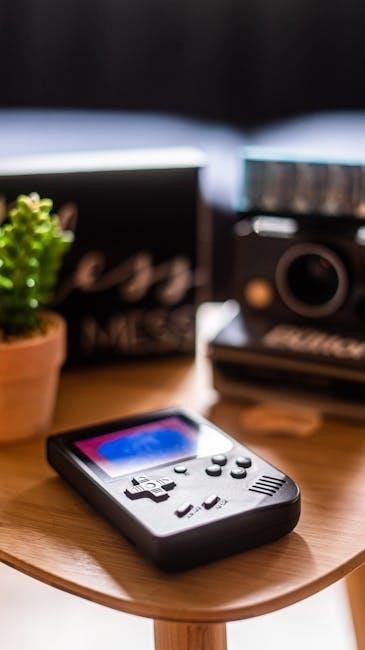
Onion OS allows extensive personalization! Users can install themes, adjust performance settings for optimal gameplay, and configure Emulation Station for a tailored retro gaming experience.
Installing Themes
Onion OS offers a vibrant community creating custom themes to personalize your Miyoo Mini Plus experience. These themes alter the visual appearance of the interface, including backgrounds, icons, and fonts, providing a fresh look.
Typically, theme installation involves downloading the theme files – often in a compressed archive – from online sources like Reddit’s r/MiyooMini. These files are then transferred to the correct theme folder on your SD card, usually located within the ‘themes’ directory. After transferring, a reboot or restarting the Emulation Station is required to apply the new theme.
Many tutorials, including those found on YouTube, visually demonstrate this process, making it accessible even for beginners. Remember to back up your existing theme before installing a new one, allowing for easy reversion if needed.
Adjusting Performance Settings
Onion OS provides options to fine-tune performance on your Miyoo Mini Plus, balancing visual fidelity with smooth gameplay. Access these settings through the main menu, typically within the ‘Settings’ or ‘Performance’ sections of the Emulation Station interface.
Key adjustments include CPU clock speed and GPU settings. Increasing these can improve performance for demanding games but may reduce battery life and generate more heat. Conversely, lowering them can extend battery life at the cost of graphical detail. Experimentation is key to finding the optimal balance for your preferences.
Online resources, like guides on Mechdiy, often suggest specific settings for different game types. Remember to test changes thoroughly to ensure stability and a positive gaming experience.
Emulation Station Configuration
Emulation Station is the front-end interface of Onion OS, managing your games and emulators on the Miyoo Mini Plus. Customization options allow you to personalize the look and feel of your library.
You can modify themes, scraper settings (for game metadata and box art), and system configurations. Scrapers automatically download information like cover art and descriptions, enhancing the visual appeal of your game lists. Adjusting scraper settings ensures accurate and complete data.
Reddit communities, such as r/MiyooMini, are excellent resources for finding custom themes and configuration tips. Experiment with different settings to create a personalized and visually appealing gaming experience.
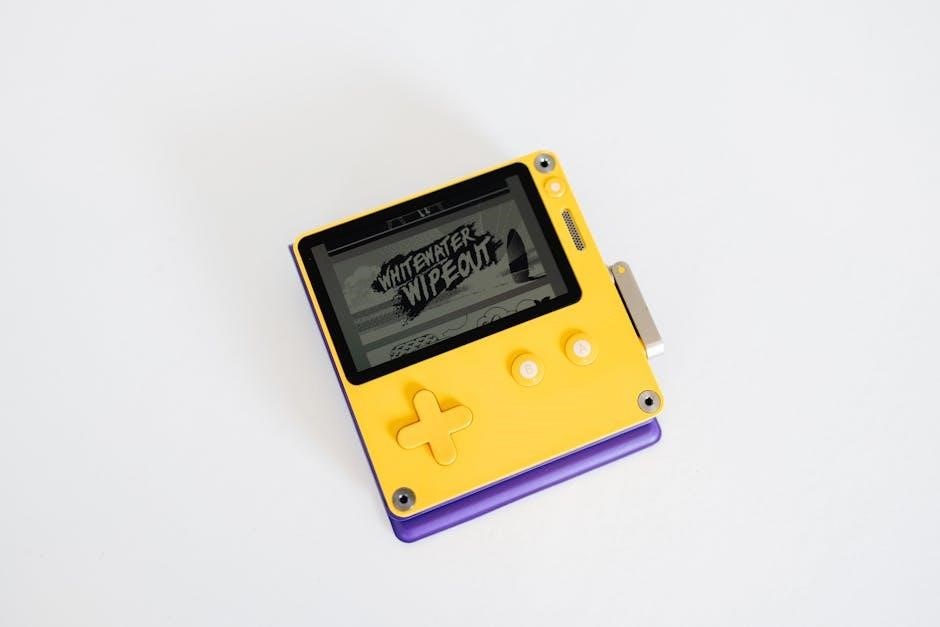
Troubleshooting Common Issues
Common problems include boot failures, missing ROMs, and Wi-Fi connectivity issues. Re-flashing Onion OS, verifying ROM formats, and checking network settings often resolve these problems.
Device Not Booting After Installation
If your Miyoo Mini Plus fails to boot after installing Onion OS, several steps can be taken to rectify the situation. First, ensure the SD card is properly seated and not corrupted. Try re-formatting the SD card using the desktop tool and re-installing Onion OS V4.2, carefully following the instructions.
Double-check that all files were correctly copied to the SD card, and that the installation process completed without errors. Sometimes, a complete power cycle – holding the power button for an extended period – can resolve temporary glitches. If the issue persists, consider downloading a fresh copy of Onion OS to rule out a corrupted download. Consult the r/MiyooMini community on Reddit for further assistance and specific troubleshooting tips from experienced users.
ROMs Not Showing Up
If your ROMs aren’t appearing in EmulationStation after installing Onion OS, verify they are placed in the correct folders. Create dedicated ROM folders for each system, ensuring proper organization. Confirm the ROM formats are supported by Onion OS – common formats include .zip, .smc, and .gba.
Refresh the game list within EmulationStation by restarting the device or using the refresh option in the menu. A corrupted ROM file can also cause issues; try testing with a known-good ROM. Some users report needing to delete the EmulationStation metadata folder to force a full rescan. The Miyoo Mini Plus community on Reddit offers valuable insights and solutions for resolving ROM detection problems.

Wi-Fi Connection Problems
Experiencing Wi-Fi issues with your Miyoo Mini Plus after installing Onion OS? Double-check your network password during setup. Ensure you’re connecting to a 2.4GHz network, as some devices have compatibility issues with 5GHz. Try restarting both your Miyoo Mini Plus and your Wi-Fi router.
Within Onion OS settings, verify the Wi-Fi is enabled and configured correctly. Some users find that manually setting a static IP address can improve connection stability. The r/MiyooMini subreddit frequently discusses Wi-Fi troubleshooting, offering solutions specific to the device and OS. Consider checking for firmware updates, as these often include network connectivity improvements.

Resources and Further Information
For continued support, visit the official Onion OS website and the r/MiyooMini community on Reddit. Numerous YouTube tutorials offer visual guidance for setup and troubleshooting.
Official Onion OS Website
The official Onion OS website serves as the primary hub for all things related to this custom firmware for handheld devices like the Miyoo Mini Plus. Here, you’ll find the latest stable releases of Onion OS, currently version 4.2, readily available for download.
Beyond the downloads themselves, the website provides crucial documentation, including detailed changelogs outlining new features, bug fixes, and improvements with each update. It’s essential to review these before installing to understand what’s changed and ensure compatibility. The site also hosts the official desktop tool, simplifying the installation process for beginners by automating SD card formatting and file transfer.
Furthermore, the website often features FAQs and troubleshooting guides to address common issues encountered during or after installation, making it an invaluable resource for both novice and experienced users. Regularly checking the official site ensures you have the most up-to-date information and support.
Reddit r/MiyooMini Community
The r/MiyooMini subreddit is a vibrant and active community dedicated to all things Miyoo, including the Mini Plus and Onion OS. It’s an excellent resource for troubleshooting, seeking advice, and sharing experiences with fellow enthusiasts. Users frequently post guides, tutorials, and tips for installing and configuring Onion OS, often addressing specific issues or offering alternative methods.
Newcomers can find answers to common questions, such as the easiest installation methods (often recommending the desktop tool) and where to download the necessary files. The community is generally very helpful and welcoming, providing support for users of all skill levels.
Regularly browsing r/MiyooMini keeps you informed about the latest developments, tweaks, and discoveries within the Miyoo Mini Plus ecosystem, ensuring you get the most out of your device.
YouTube Tutorials
YouTube hosts numerous video tutorials dedicated to installing and configuring Onion OS on the Miyoo Mini Plus. These visual guides are incredibly helpful, especially for beginners who prefer a step-by-step demonstration. Several creators offer comprehensive walkthroughs, covering everything from downloading the necessary files to transferring ROMs and customizing the interface.
Many tutorials focus on the Onion OS V4 installation process, detailing the use of desktop tools for easy formatting and flashing. Some videos even provide guidance on bringing over existing ROM collections.
Searching “OnionOS Miyoo Mini Plus” will yield a wealth of options, allowing you to choose a tutorial that best suits your learning style and technical expertise.



0 Comments